 SlideClick
See what's next — and jump anywhere
A next-slide preview and a strip of slide thumbnails. Tap one to jump straight to it. SlideClick for Mac reads your presentation file, so the thumbnails are your real slides.
 Presentation remote for iPhone
SlideClick turns your iPhone into a wireless clicker for your Mac — with the next slide, your notes, a laser pointer and a timer right in your hand.
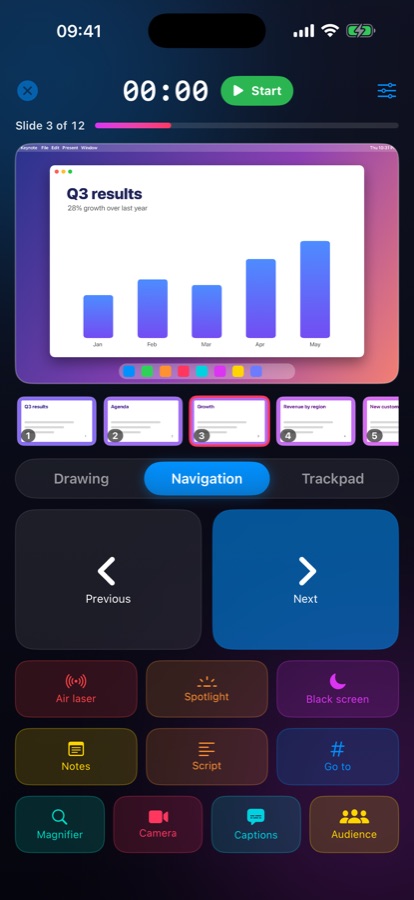
Stop walking back to the laptop. Everything you'd glance at on the presenter display is on your phone.
A next-slide preview and a strip of slide thumbnails. Tap one to jump straight to it. SlideClick for Mac reads your presentation file, so the thumbnails are your real slides.
A live preview of the Mac screen, so you always know what the room sees.
Huge Next and Previous targets, plus swipe. Easy to hit without looking down.
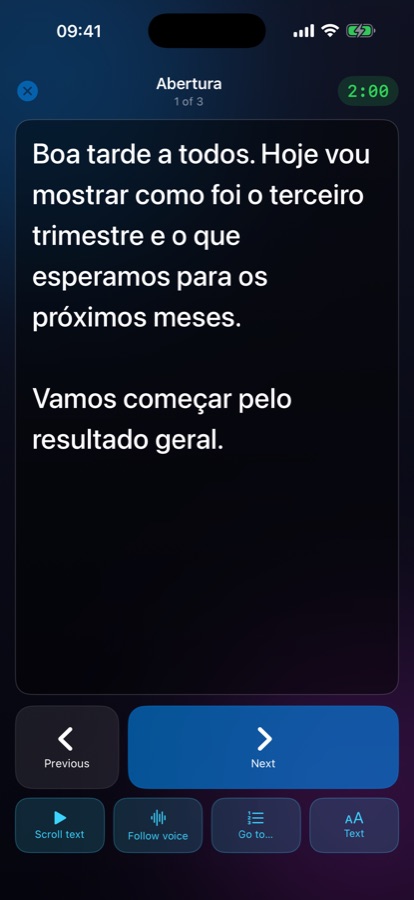
Your speaker notes from Keynote and PowerPoint, on the phone, slide by slide.
“Slide 3 of 12” with a progress bar. Go to any slide by number, or black out the screen.
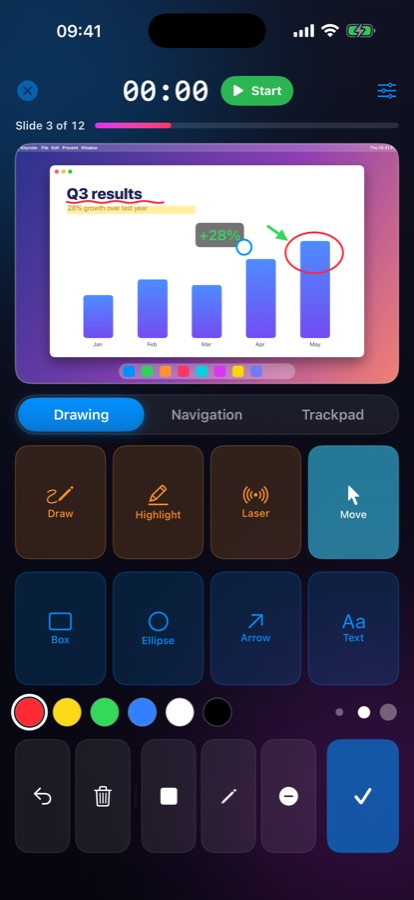
Pen, highlighter, boxes, ellipses, arrows and text — drawn live on the Mac screen while you talk.
Drag on the preview and a pointer follows on the big screen.
Hold a button and move your iPhone to point — the gyroscope does the rest. Spotlight dims everything except a circle around what matters.
Set a target time. Your iPhone vibrates at 5 minutes, 1 minute and time-up — you'll notice it even in your pocket.
Optional: keep the phone in your hand and click with the volume buttons.
Write a script per talk and read it line by line, slide by slide, as you present.
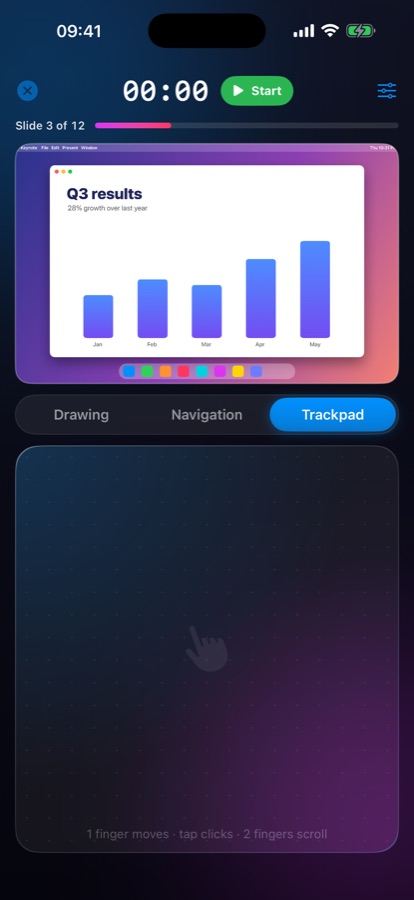
Need to click a link or play a video? Use the phone as a trackpad for the Mac.
Keynote, PowerPoint, Google Slides in the browser, or a PDF in Preview — SlideClick detects which one is in front.
Curious? The app has a demo mode so you can explore every control before installing anything on your Mac.
SlideClick has two parts: the iPhone app and a small, free helper that lives in your Mac's menu bar.
Download SlideClick for Mac (free, macOS 13 or later) and open it. It sits quietly in the menu bar.
Open SlideClick on your iPhone, pick your Mac, and type the 6-digit code it shows. You only do this once.
Open your deck in Keynote, PowerPoint, Google Slides or Preview and start. Your iPhone is now the remote.

SlideClick talks directly to your Mac over your local Wi-Fi. There's no server in the middle, no account and nothing to track.
No. SlideClick only needs your iPhone and Mac on the same Wi-Fi network. Nothing is sent to the internet — so it works in a conference room with a flaky connection too, as long as both devices share a network.
Keynote, PowerPoint, Google Slides (in the browser) and PDFs in Preview. SlideClick for Mac detects which one is in front and sends the right keys. Presenter notes are available for Keynote and PowerPoint.
macOS asks you to approve each capability explicitly:
It only acts on commands from iPhones you've paired, over an encrypted connection on your local network.
Not yet. SlideClick needs the Mac helper, which runs on macOS 13 or later.
Yes. The iPhone app has a Try without a Mac demo mode that lets you explore every control.
The iPhone app and the Mac helper are free. SlideClick Pro is an optional one-time purchase (US$ 4.99) that unlocks the air laser, spotlight, magnifier, rehearsal reports, audience Q&A and polls, co-presenters, drawings as PDF and Lock Screen controls. No ads, no subscriptions.
Something else? See Support.
Get SlideClick on your iPhone and the free helper on your Mac.